Data Lake
Four pages covering the Data Lake Service (DLS): the movement of files through the lake zones, the publish step into the database, the profiling of what actually arrived, and the validation of that against the agreed data contract.
The zone names shown on these pages come from system settings, so a client that calls its Trusted zone something else sees its own name throughout. The defaults are Landing, Raw Archive, Trusted and Published.
DLS Trace
The accumulated snapshot of file movement through the lake. It answers: of the files we expected, how many made it to each zone?
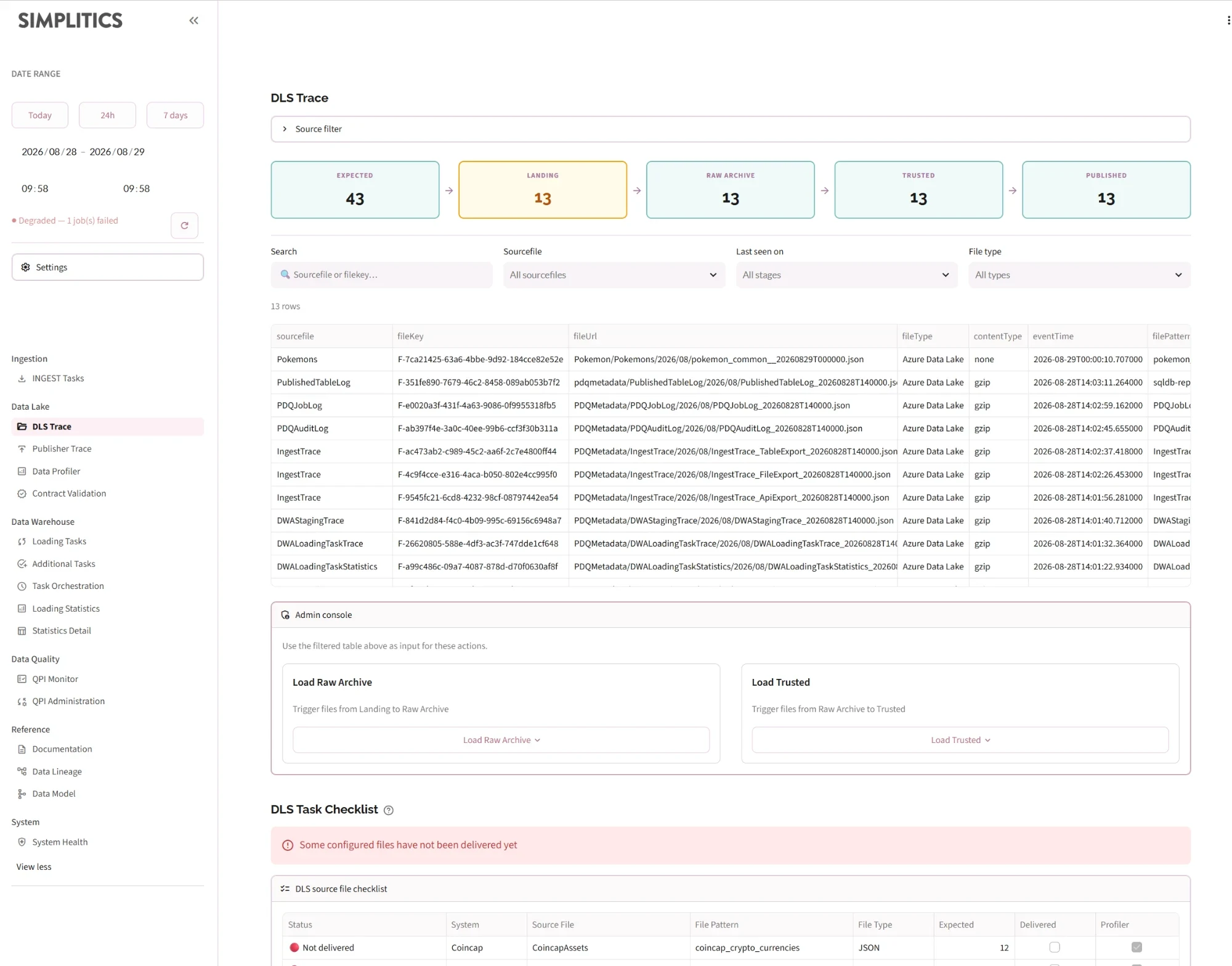
Pipeline funnel
A horizontal stepper across the top, one box per stage:
Expected → Landing → Raw Archive → Trusted → Published
The Published stage appears only when the Publisher is enabled for the installation. Colours carry the verdict:
| Colour | Meaning |
|---|---|
| Teal | Healthy — count is at least the previous stage |
| Amber | Fewer files than the previous stage — possible data loss |
| Red | Zero files reached this stage |
Expected is derived from each sourcefile's configured expected files per day, prorated across the selected window. The other stages count distinct file keys that carry a URL for that zone.
When the Publisher is enabled and zero files reached Published, an explicit error appears with a link straight to System Health.

Source filter
An expander at the top narrows everything below — funnel and table alike — by system and then by sourcefile.
File table
Every audit record in the window, newest first. Fast filters above it:
- Search — sourcefile or filekey
- Sourcefile, File type multiselects
- Last seen on — the furthest stage each file reached (Landing / Raw Archive / Trusted / Profile / Published)
"Last seen on" is the field to reach for when the funnel shows a drop: filter to the stage the files got stuck at, and you have the exact list.
Admin console
Admin only. It re-triggers the filtered files by pushing object-detection messages back onto the queue, in batches of 100:
- Load Raw — re-triggers from Landing into the Raw Archive (labelled Load Raw Archive in earlier releases)
- Load Trusted — re-triggers from Raw Archive into Trusted (labelled Load Conformed in earlier releases)
Each sits behind a confirmation popover naming the file count, and the result reports the number of triggers pushed. Both are audit-logged.

DLS Task Checklist
Every configured sourcefile, with a ✅ Delivered / 🔴 Not delivered status, sorted undelivered first. Columns: system, sourcefile, file pattern, file type, expected files, delivery flag, profiler flag. A sourcefile with an expected amount of zero counts as satisfied.

Publisher Trace
Where DLS Trace tracks files through zones, Publisher Trace tracks publish operations — each row is one publish from a source file into a destination table.
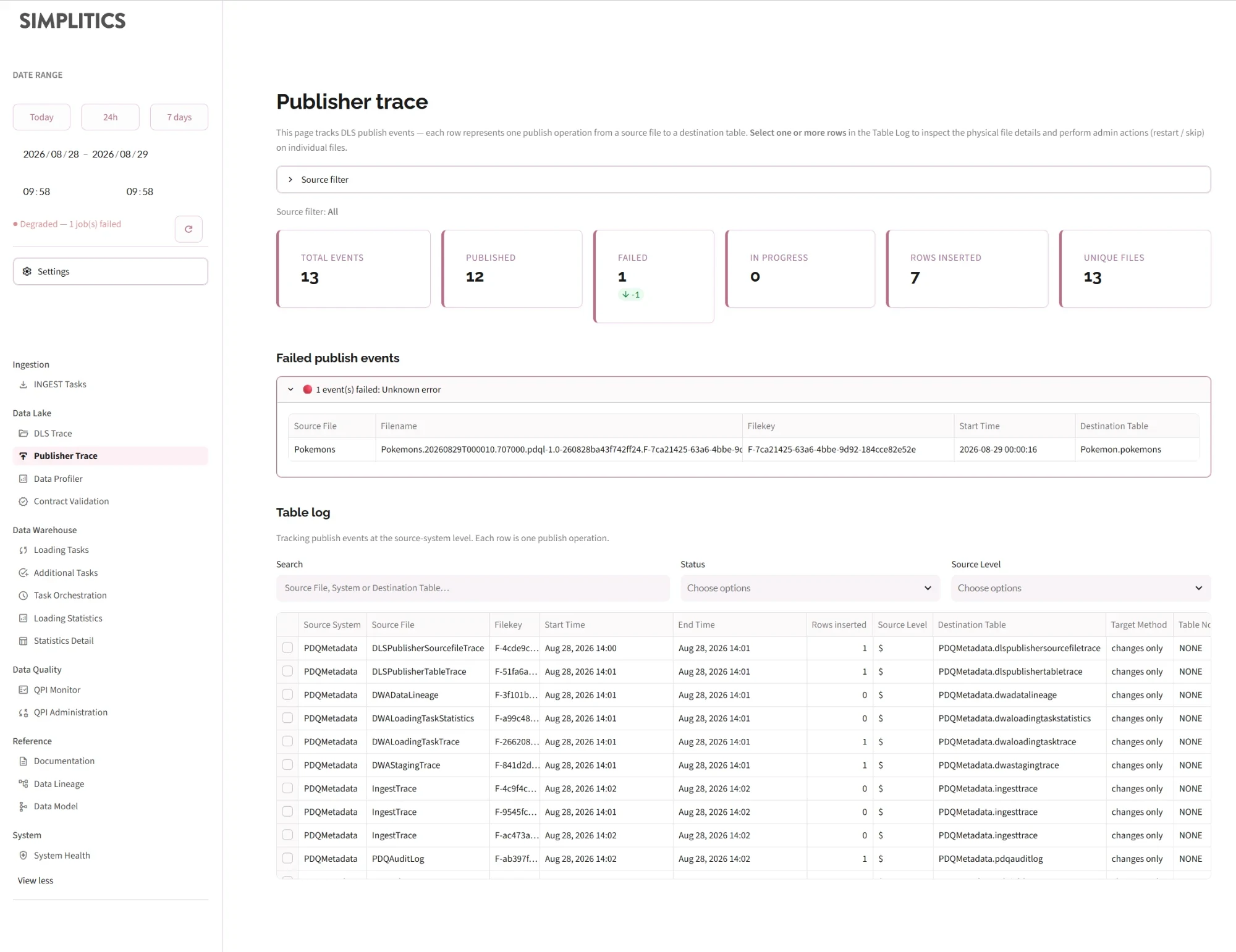
Metrics
Total events, Published, Failed, In progress, Rows inserted, Unique files.
Status matching is deliberately tolerant of casing and whitespace, and anything not classified as published or failed counts as in progress — so a backend that starts sending Complete instead of Completed does not silently break the counters.
Failed publish events
Failures are grouped by error type rather than listed one by one. Each group expands to the affected rows plus the full error text, so a hundred files failing on one root cause read as one problem.
Table log
One row per publish operation, with fast filters for search (source file, system, destination table), Status and Source Level. Failed rows are highlighted. Columns include the destination table, target method, table normalization and rows inserted.
Select one or more rows to work with them:
- A contextual action bar appears with Re-publish selected (admin only)
- The full filekey UUIDs are available in an expander for copying
- The File details section below fills in with the physical file records behind the selection
File details and admin actions
The file-level view shows the full filename, write time, size, status and any error message, with a checkbox per row. Admin actions:
- Restart File(s) — re-trigger the publish
- Skip File(s) — mark as handled without publishing
Files whose start time is older than the configured Trusted retention period (KEEPDATAINTRUSTEDFORDAYS, default 3 days) cannot be restarted — the underlying data is gone. The page detects this, disables Restart, and points you at DLS Trace to re-trigger Trusted from the Raw Archive instead.
Data Profiler
Titled DLS Data Contract Generator in the app. It shows what a delivery actually contains, and turns that into a data contract.
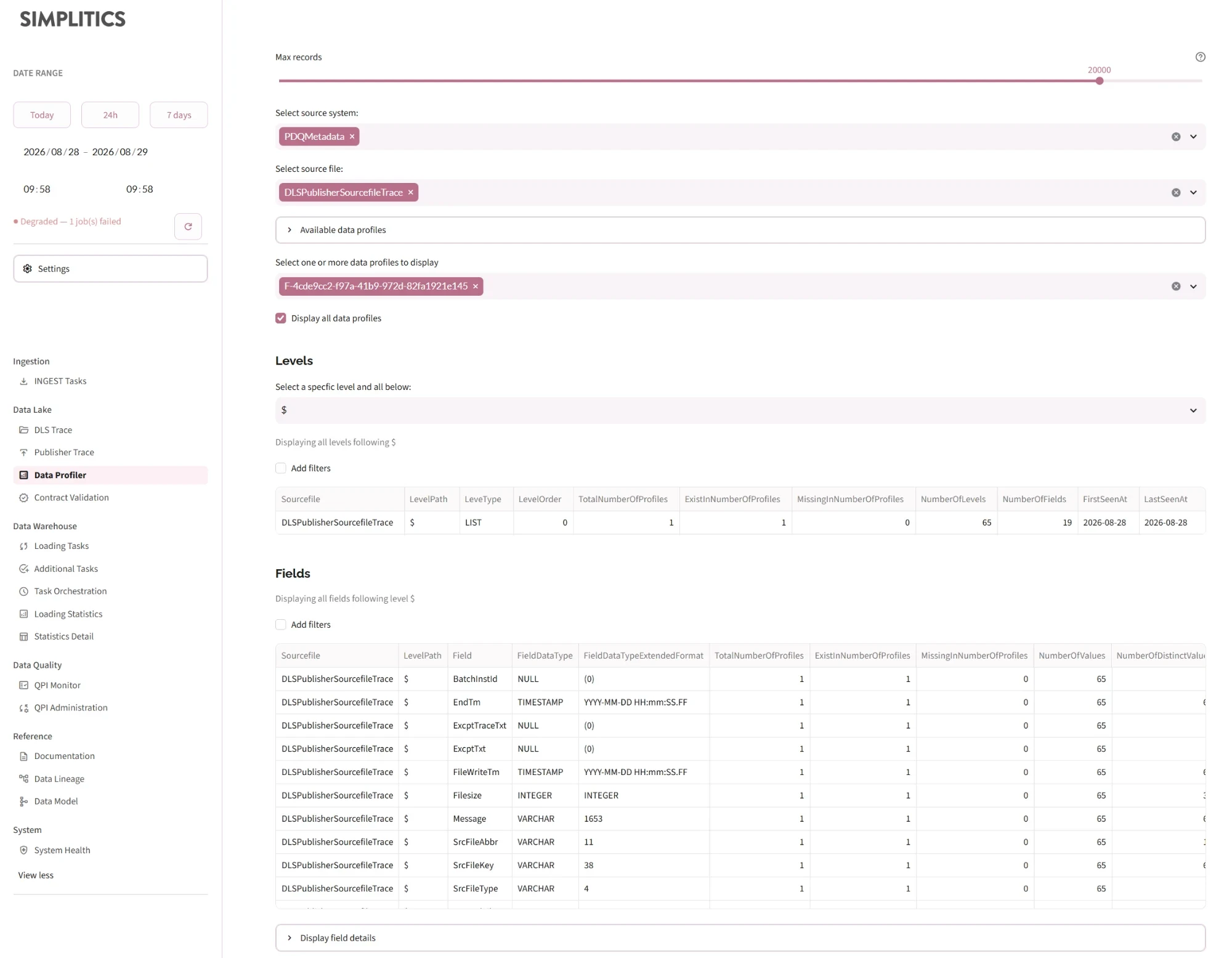
Selecting profiles
Pick one source system and one source file. The page lists every available profile for that file in the window, newest first, with a link to the detailed profile. Select one or more profiles — or tick Display all data profiles — to load them.
The selected profiles are read from the Delta Lake and loaded into an in-memory DuckDB table, which is what the sections below query.
Levels, fields and details
- Levels — the hierarchy paths in the file. Selecting a level narrows everything below to that level and its descendants.
- Fields — the fields within the selected levels.
- Field details — per-field detail for one selected field.
Each table has its own filter builder.
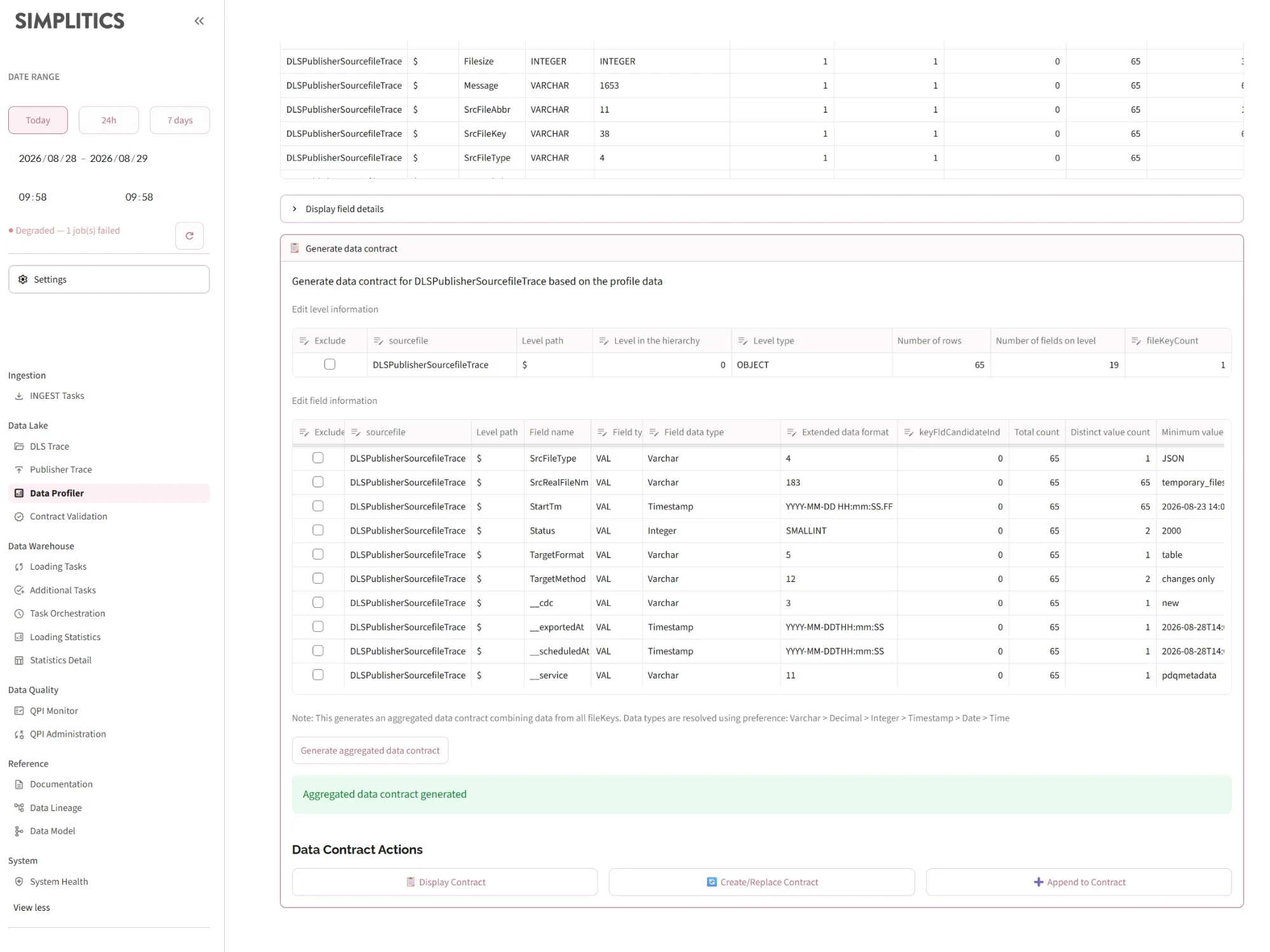
Generating a data contract
The Generate data contract expander builds an aggregated contract across every selected filekey. Level and field information can be edited before generating.
Data types are resolved across filekeys by preference: Varchar > Decimal > Integer > Timestamp > Date > Time — the widest type wins, so a field that appeared as an integer in one delivery and as text in another is typed as text.
Once generated:
| Action | Effect |
|---|---|
| Display Contract | Show the generated JSON |
| Create/Replace Contract | POST — replaces the existing contract |
| Append to Contract | PUT — adds to the existing contract |
Both writes are audit-logged and report the API status verbatim.
Contract Validation
The drift detector. It compares today's profile data against each sourcefile's registered data contract and reports every difference.
Select one or more source systems (nothing is selected by default — use Select all systems or Clear), then the source files within them. Profile data for the current date is loaded for each and validated.
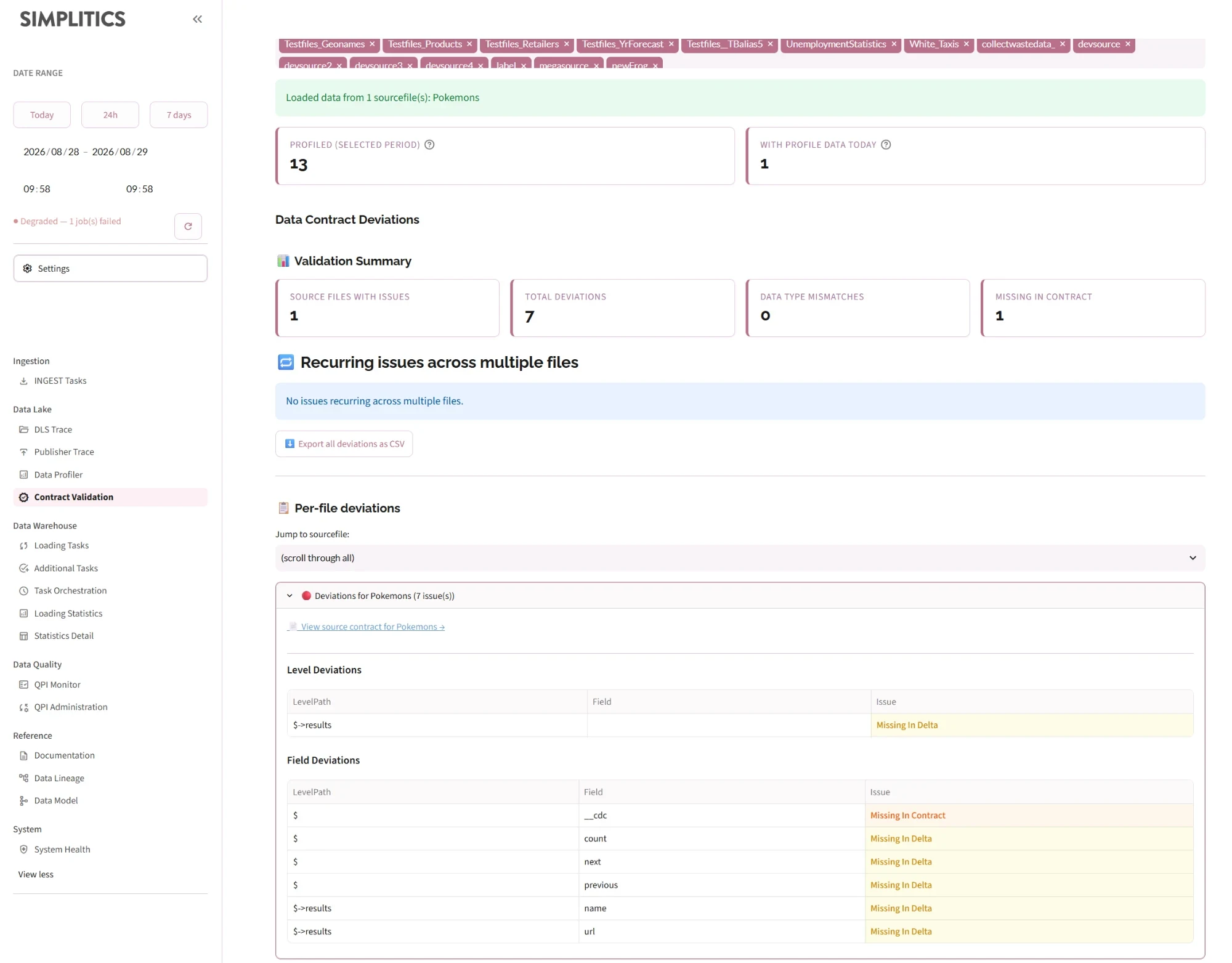
Deviation types
| Issue | Meaning |
|---|---|
| 🔴 Data Type Mismatch | The field exists in both, but the types differ |
| 🟠 Missing In Contract | Present in the data, absent from the contract — the source changed |
| 🟡 Missing In Delta | Present in the contract, absent from the data — the source stopped sending it |
Type comparison is normalised before comparing, so VARCHAR/STRING/TEXT/CHAR are one type, INTEGER/INT/BIGINT/SMALLINT another, and so on — only real differences are reported. Fields marked excludeFromProfiling in the contract are not reported as missing.
Reading the results
- Overview KPIs — files profiled in the selected period, and files with profile data today
- Validation Summary — source files with issues, total deviations, and counts by type
- Recurring issues across multiple files — deviations affecting more than one file. Fixing these in the contract resolves them everywhere at once, so start here.
- Export all deviations as CSV
- Per-file deviations — one expander per file, ordered by issue count, with a jump-to selector. Arrays are collapsed: three or more numerically-indexed sibling deviations render as a single summary row rather than a hundred.
Each file's expander links back to its contract on the Documentation page.
Missing In Contract is the finding that matters most. It means the source system changed without the contract being updated — the exact drift the contract exists to catch.